Tutorials · Part 2 · 1:35
Set up your shop: price, mockups, watermarks and description
Watch on YouTube · the whole course
In this video
You set up your shop once, and every listing uses it: your price, your mockups and a few extras. Here is each setting in order.
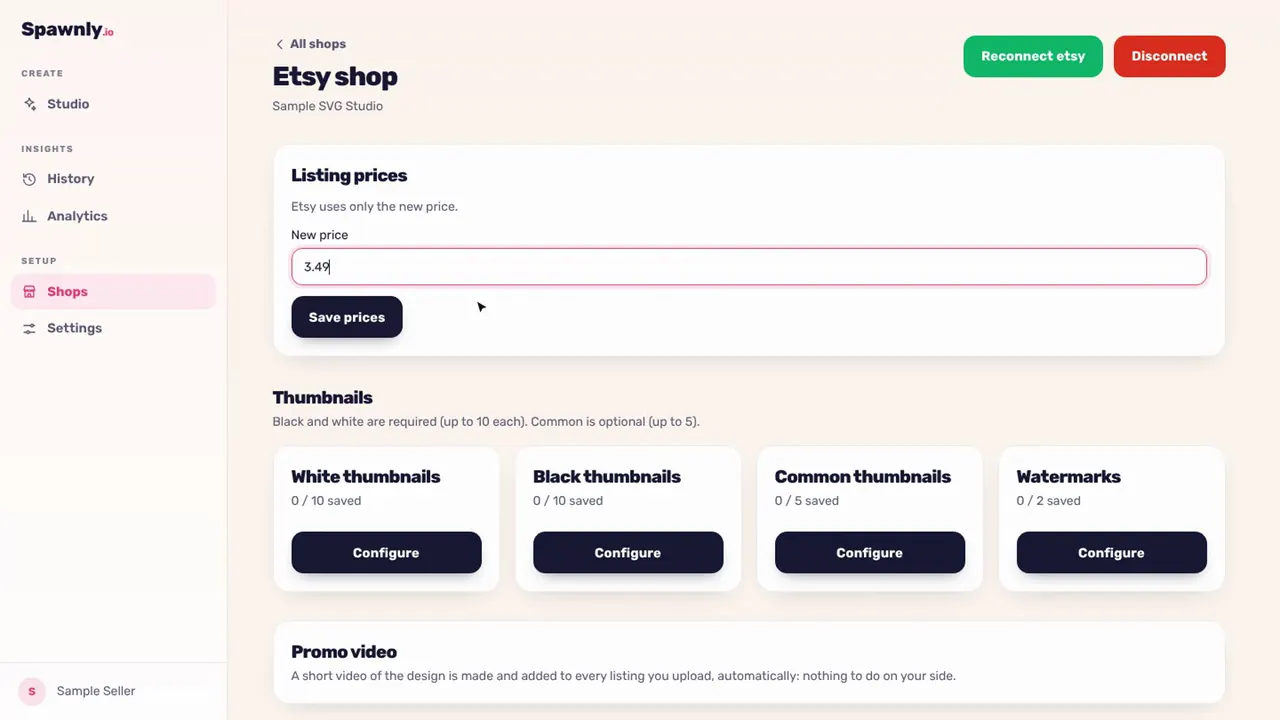
Your listing price
Start with the price. Type it, for example 3.49, and click Save prices. Every listing Spawnly uploads uses it. If you are not sure what to charge, see how to price SVG files.
Your white mockup and its design area
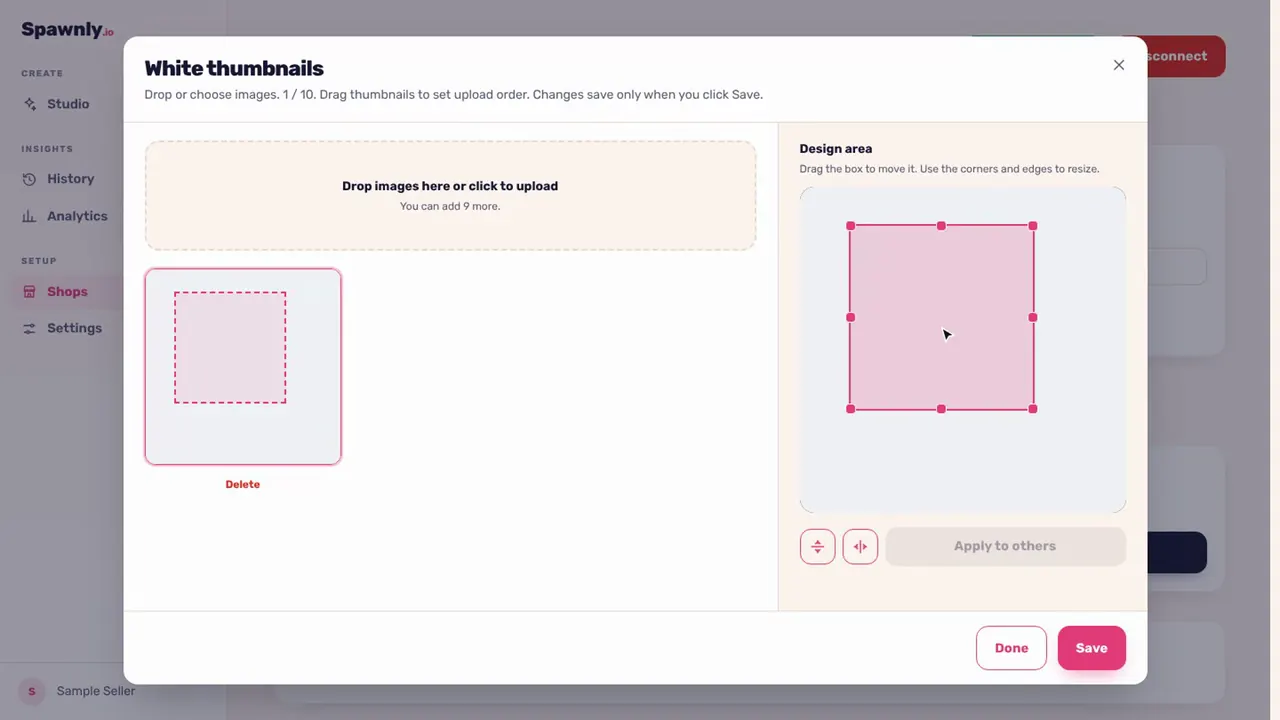
Open White thumbnails and upload your white mockup: a flat, front-facing photo of the product works best. The pink box is where your design will go. Pull its corners to resize it and drag it to move it, leaving a margin so designs never touch the edges. Then click Save.
Your black mockup
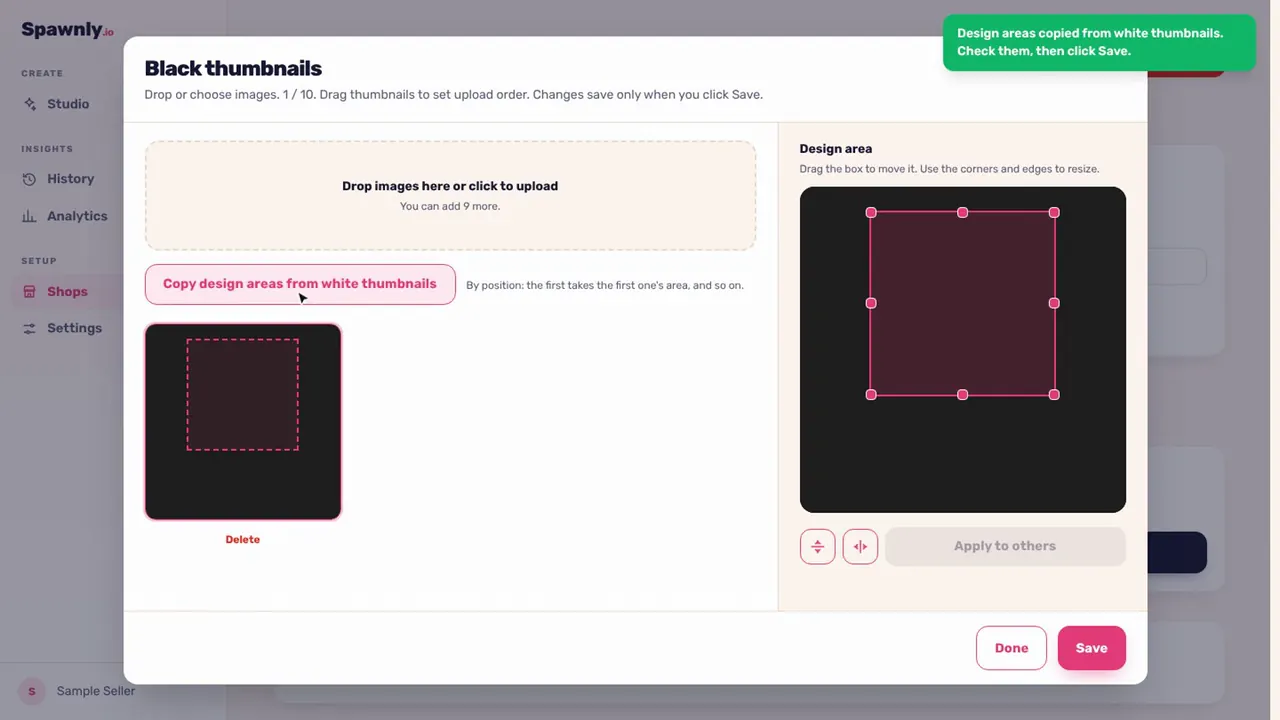
Now Black thumbnails. Upload your black mockup and click Copy design areas from white thumbnails, so both colors place the design in the same spot. Check it, then Save.
Common thumbnails and watermarks (optional)
Common thumbnails are added to every listing as they are, like an image saying the item is a digital download. Watermarks are optional too: add one for each thumbnail color to protect your designs in the listing photos. More on what makes a good first photo in listing photos and mockups for SVG files.
A bonus PDF (Pro plan)
On the Pro plan you can add a PDF to every zip file, like a usage guide or a license.
Your shop description
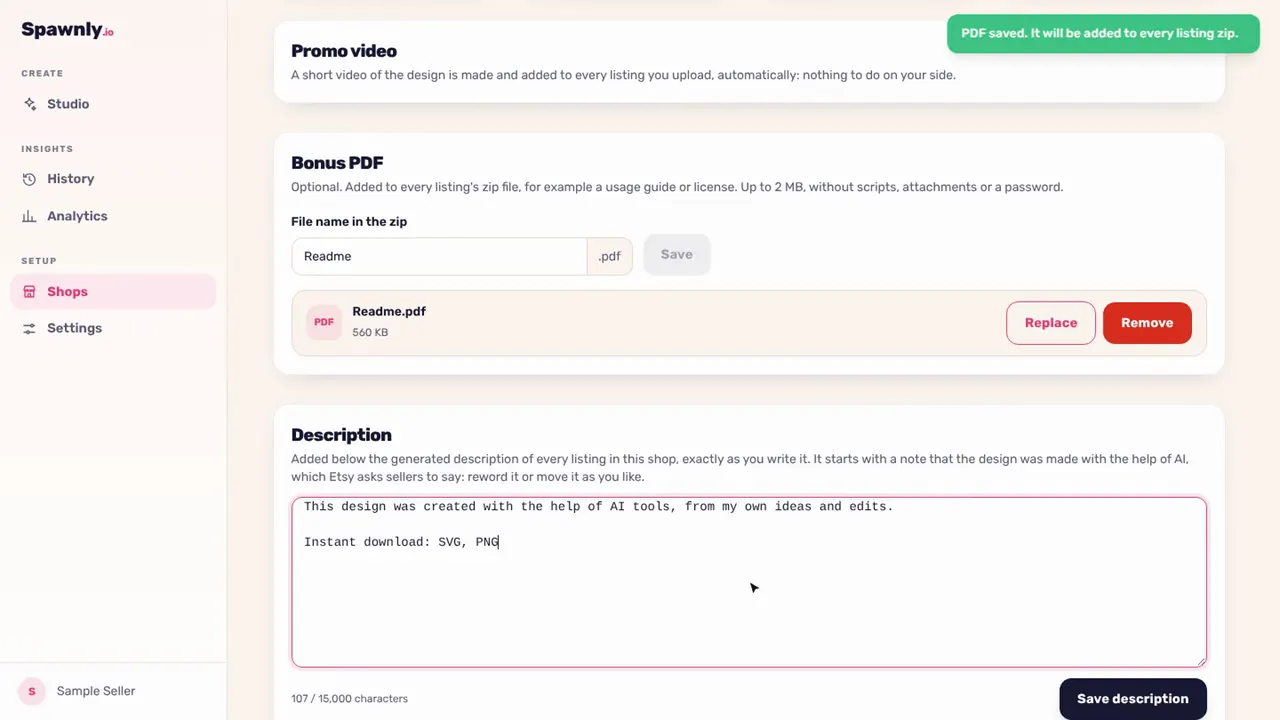
Finally, the description. It is added below every listing's own description, and it starts with the note Etsy asks sellers to include when a design was made with the help of AI. Keep it, or reword it. Why the note matters: Etsy's AI disclosure rule.
Your shop is ready, and the Studio is unlocked. Next: create your first designs and upload them to Etsy.